
Choose the right button
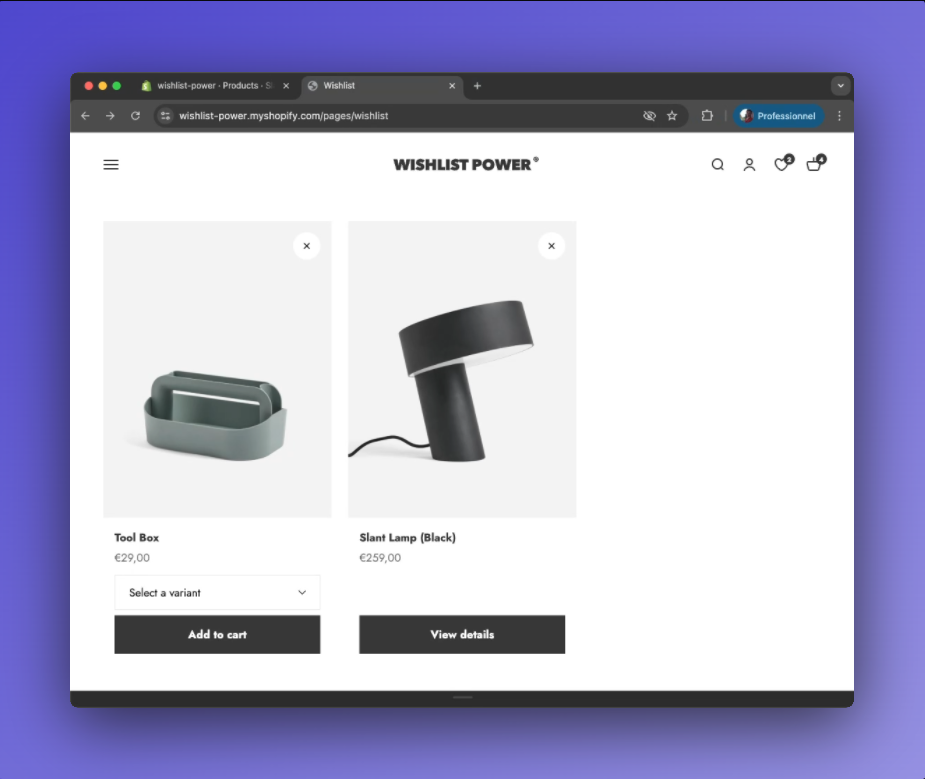
By default, each product on the wishlist page has an Add to cart button. You can change this to View details for selected products using a product tag.
| Button | What happens when clicked | When to use it |
|---|---|---|
| Add to cart | Adds the product to the cart from the wishlist. | Customers can purchase the product directly. |
| View details | Opens the corresponding product page. | Customers need to choose options, customize the item, or read more details before purchasing. |
Step 1 — Add the product tag
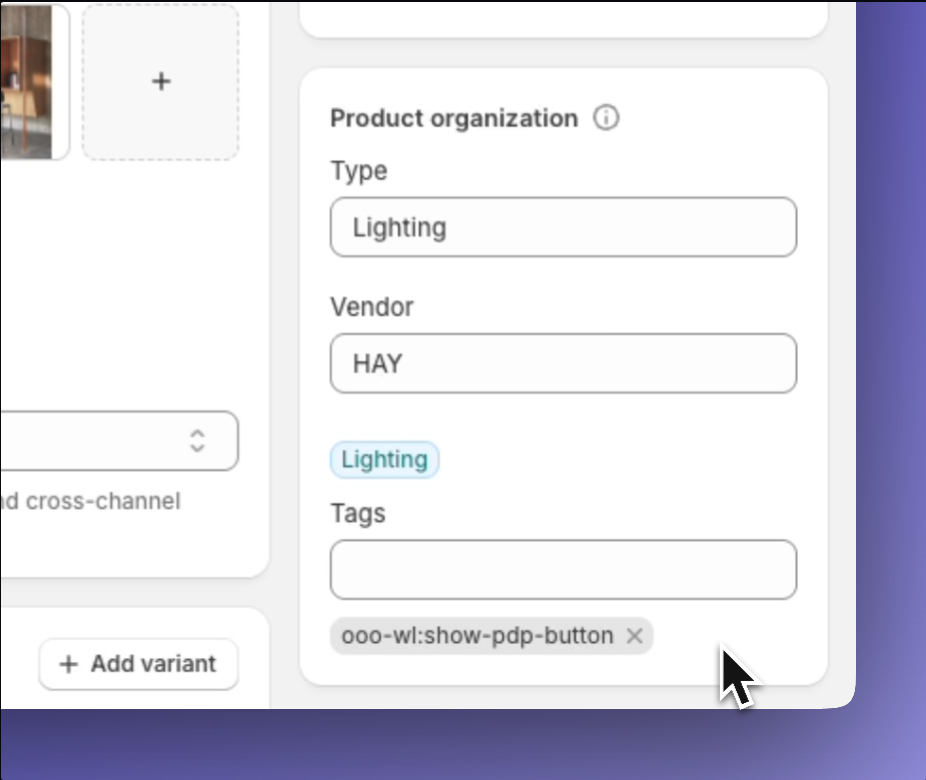
In your Shopify admin, open the product you want to change. Add the following tag, then save the product:
ooo-wl:show-pdp-button
The tag replaces Add to cart with View details for that product on the wishlist page. Repeat this for any other products that need the same behavior.
Step 2 — Check your wishlist page
Open your storefront and add the tagged product to your wishlist. On the wishlist page, check that its button now says View details.
Click the button to confirm that it opens the product page.
Switch back to Add to cart
Remove the ooo-wl:show-pdp-button tag from the product and save. The product will use the default Add to cart button again.