
Apply your theme’s styling
In Shopify’s Theme Editor, open App embeds, select Wishlist setup, and choose your theme from the list. Save your changes.
Wishlist elements, including the button on product pages and the product cards on the wishlist page, automatically adopt your theme’s styling.
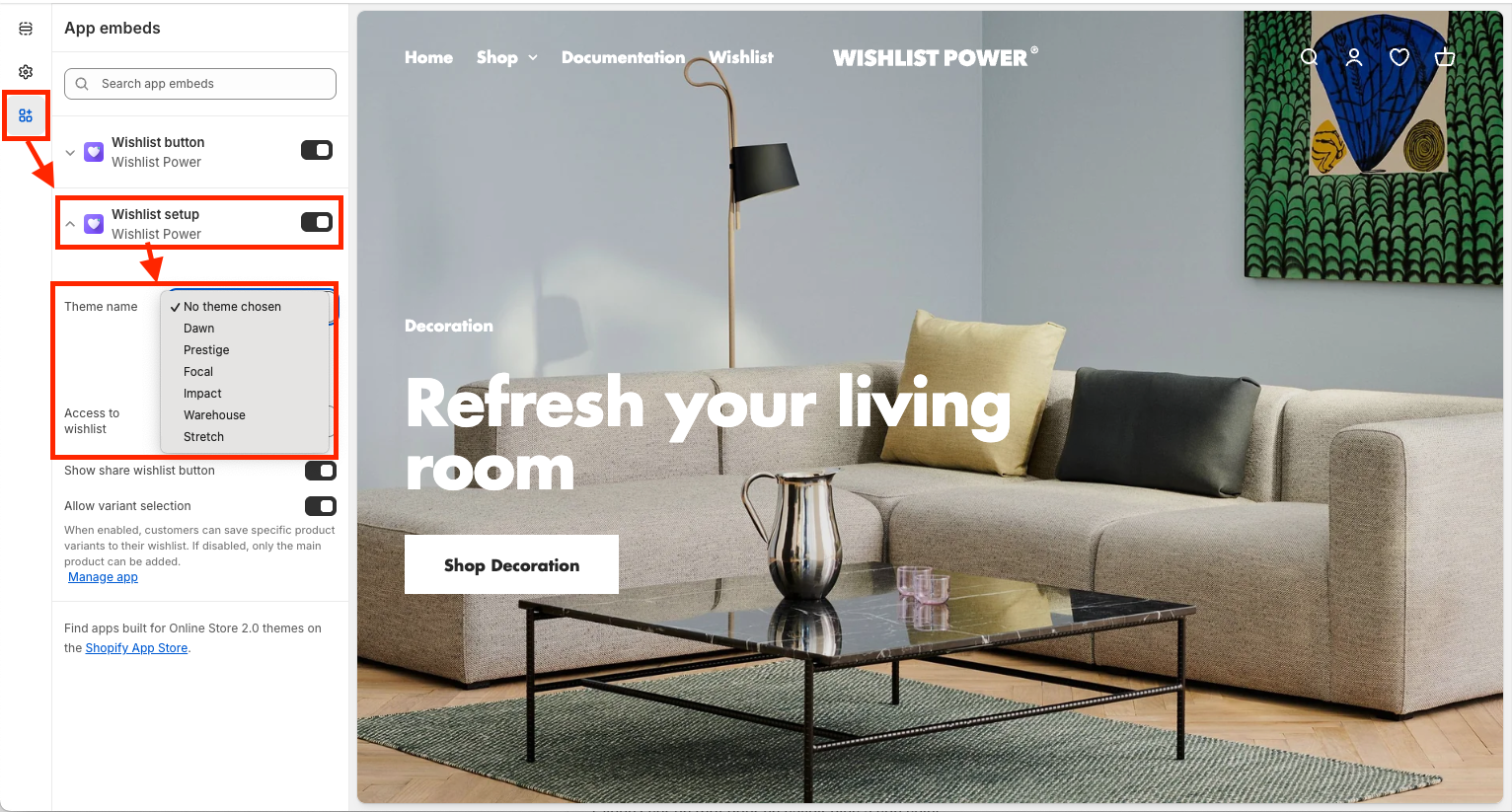
Selecting a theme gives its styling priority over the settings listed below. Changing those settings in the app block will no longer change the corresponding appearance.
Wishlist page settings overridden by your theme
The following settings in the Wishlist content block are ignored when a theme is selected in Wishlist setup.
| Setting | What controls the appearance instead |
|---|---|
| Product card border radius | Your theme’s product card corner styling. |
| Product card background | Your theme’s product card background styling. |
| Add to cart button → Border radius | Your theme’s button corner styling. |
| Add to cart button → Button background | Your theme’s button background styling. |
| Add to cart button → Button text | Your theme’s button text color. |
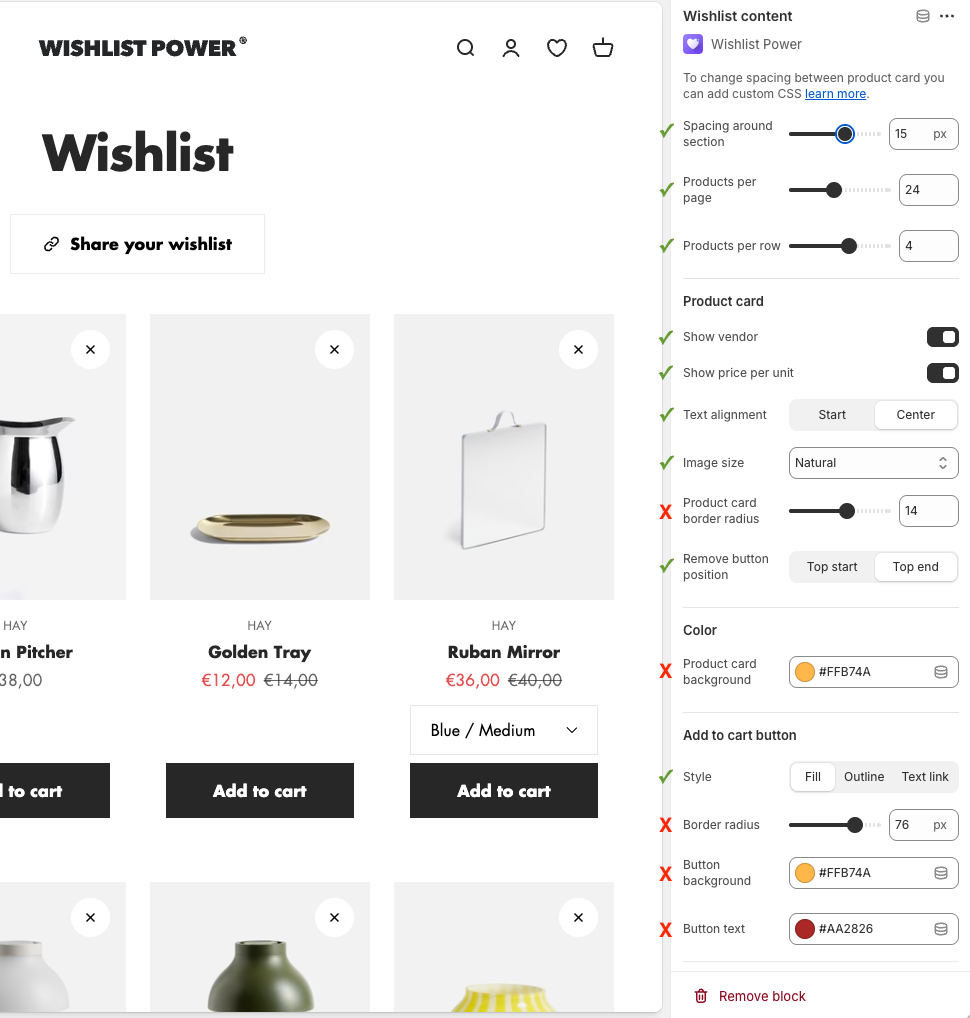
For an overview of the page’s configuration options, see Customize your wishlist page.
Product page settings overridden by your theme
The following settings for the wishlist button on product pages are ignored when a theme is selected.
| Setting | What controls the appearance instead |
|---|---|
| Button height | Your theme’s button sizing. |
| Button border radius | Your theme’s button corner styling. |
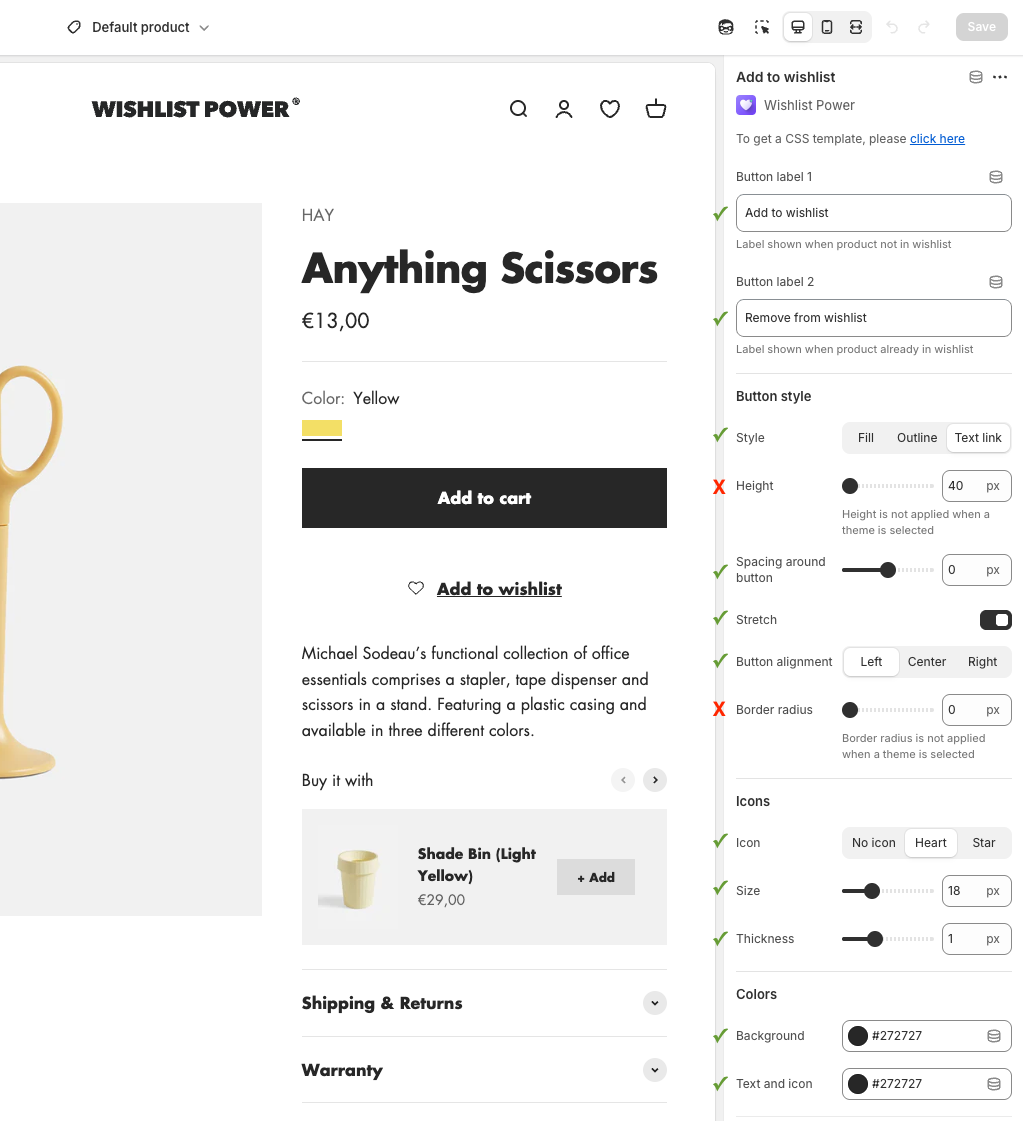
Customize the inherited styles
You can still override the preconfigured styles using the available CSS variables. See Customize your wishlist with CSS for the reference and examples.